 TaskGardenAi
User guide
How to use TaskGardenAi
Everything you need to get going, from your first minute to managing your plan. Each step takes a few taps.
In this guide
1. Set up in a minute
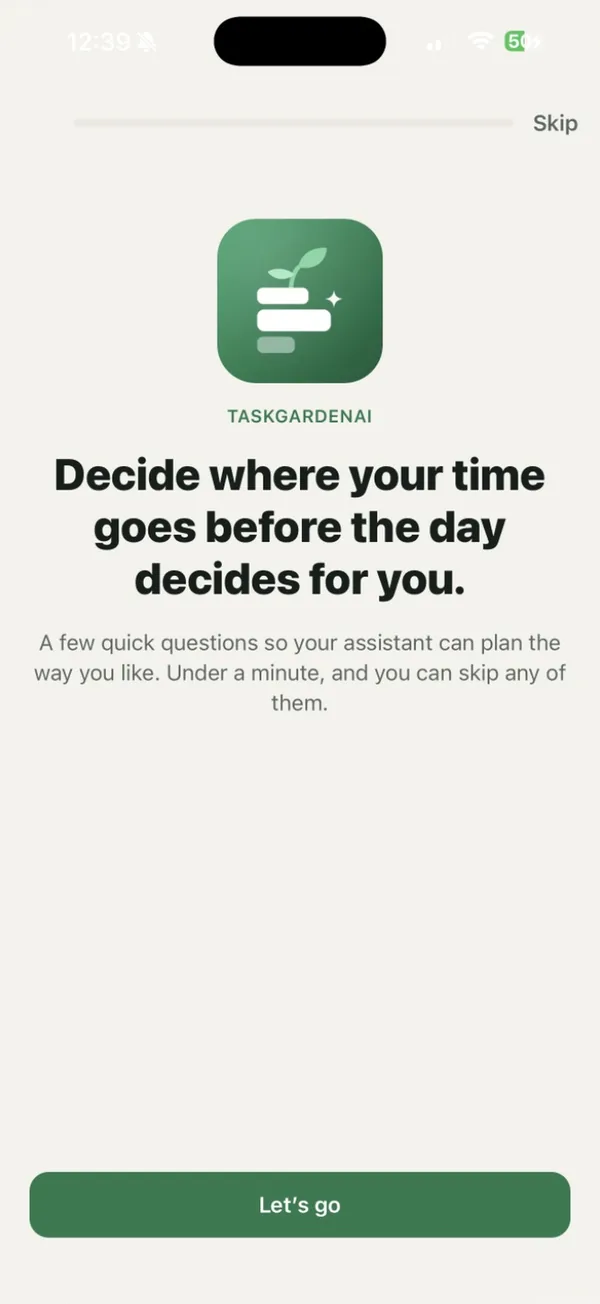
- Open TaskGardenAi and tap Let’s go. Every question can be skipped.
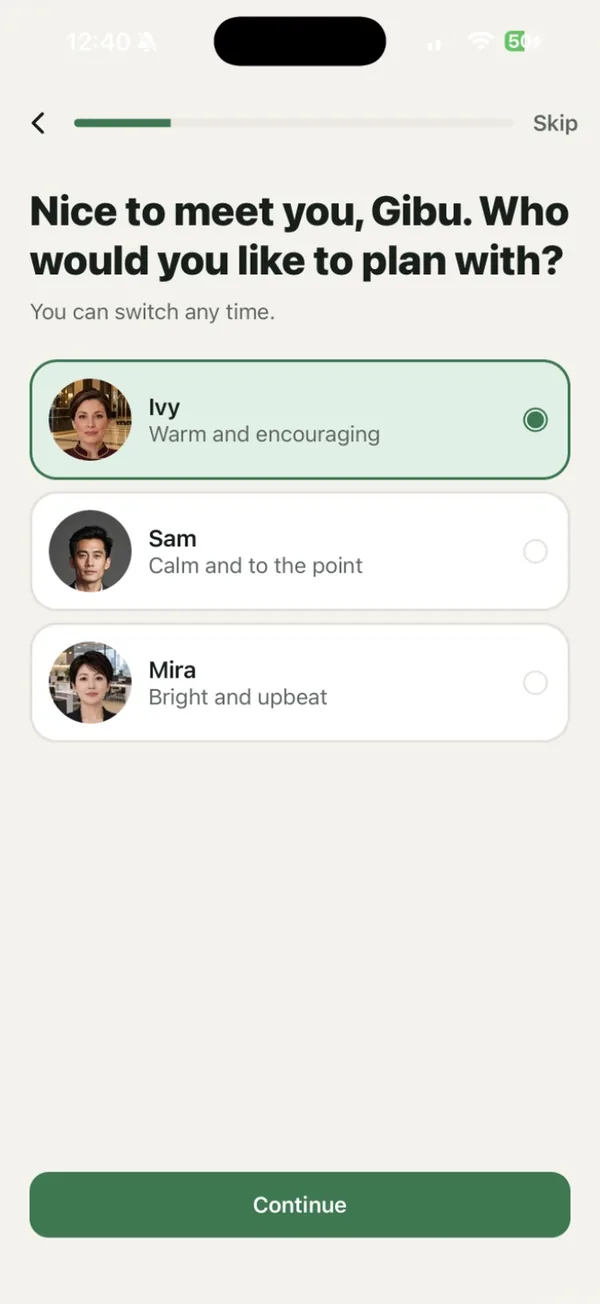
- Add your first name, then pick your assistant: Ivy (warm and encouraging), Sam (calm and to the point) or Mira (bright and upbeat). You can switch later.
- Choose what you want help with, when your day starts and ends, a few daily habits, and the topics for your line of the day.
- Tap Set up your garden. You land on Home, ready to plan.
- To use the assistant, sync between phones or start your free week, sign in with Apple, Google or email. Tap the round profile button at the top right of any tab.
The planner, timer and garden work without an account. Everything stays on your phone until you sign in.
2. Plan your day
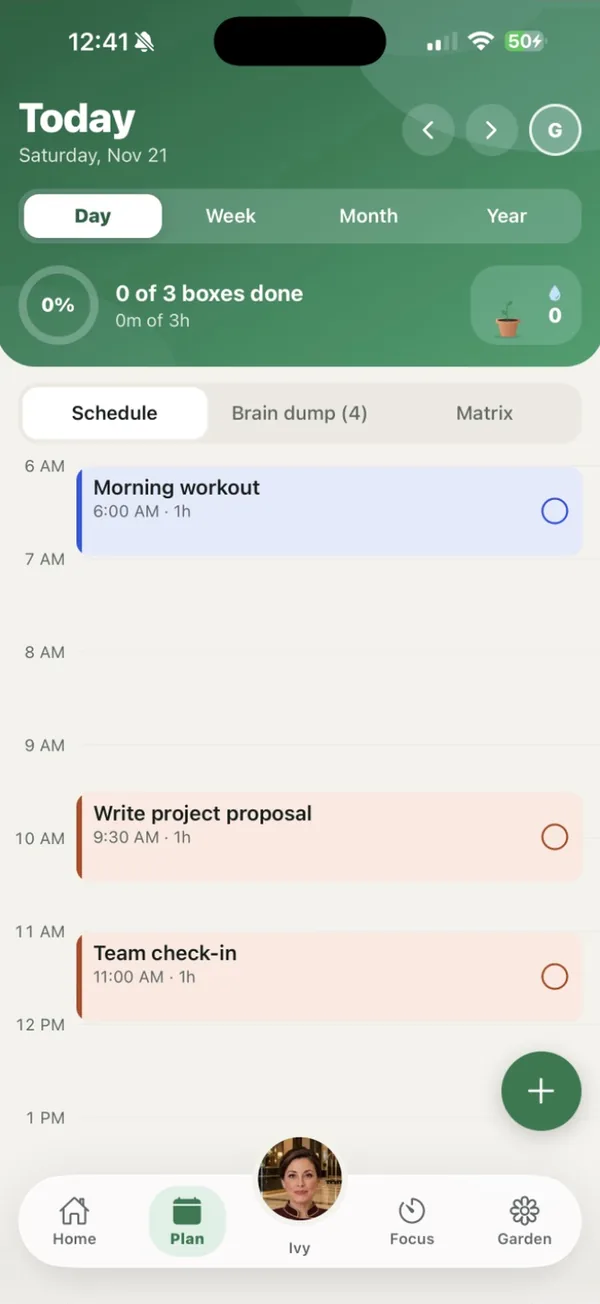
- Open the Plan tab. Tap +, or tap an empty time on the timeline, to add a time box: a task with a start and an end.
- Give it a name, a time and a length, and optionally a category, a repeat (daily, weekdays, every few days, monthly…), subtasks and tags. Tap Save.
- Not sure when yet? Put it in Brain dump. Quick add understands plain words, like “Gym tomorrow 6pm every mon wed fri #health”.
- Tap the star on up to three tasks to make them today’s priorities. The Matrix view sorts tasks by important and urgent.
- Let AI help: AI brain dump turns a messy list, a photo or a PDF into tasks, and Plan my day fits your tasks into the free time you have. Nothing is added until you confirm.
- Switch between Day, Week, Month and Year at the top to see the bigger picture and set goals.
3. Talk to your assistant
- Tap your assistant in the middle of the tab bar, or the small assistant bubble on any tab.
- The first time, the app shows what it shares with its AI services and asks for your OK. You can change this later in Profile → AI data sharing.
- Type or use the keyboard mic. Try “move gym to 7”, “make the report my top priority”, “push lunch to tomorrow” or “go to my week”. Every change can be undone with one tap.
- For a live call, tap the bubble and choose Talk (voice only) or Video (see the face). Live calls are for people 18 and over, are not recorded, and use your camera only if you turn it on.
- Your assistant remembers your name and routines on your phone so it plans better. See or erase that memory in Profile → All settings → Assistant memory.
4. Focus on one box
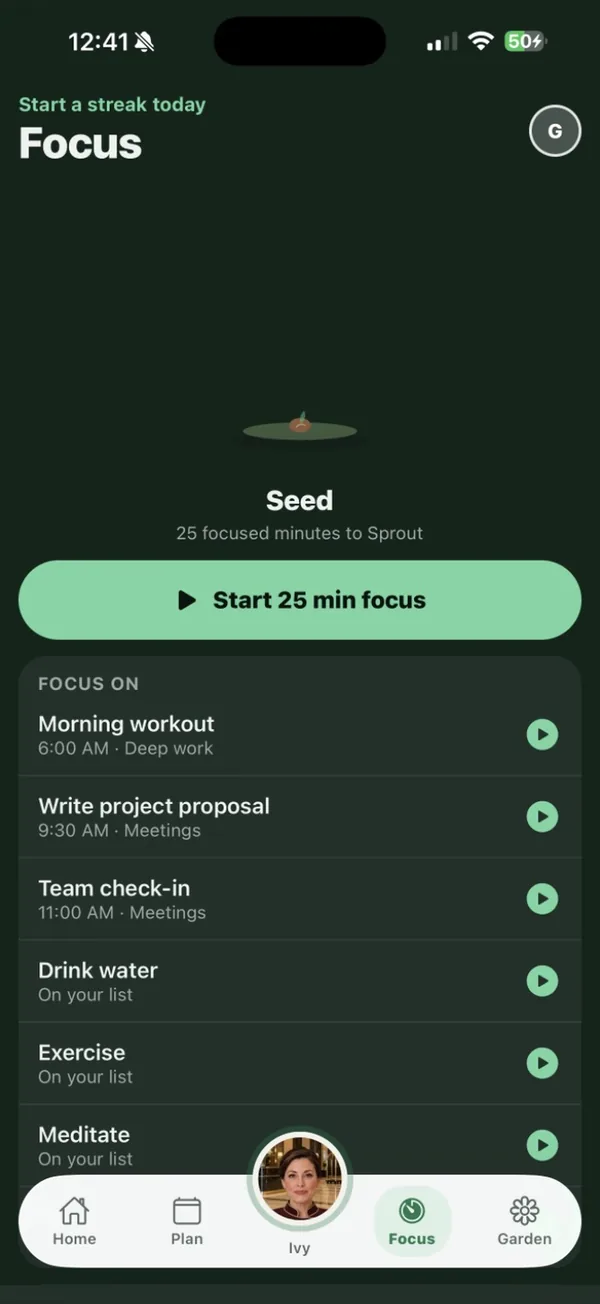
- Open the Focus tab and tap Start 25 min focus, or pick a task under Focus on.
- On iPhone, the box you are in counts down on your Lock Screen and in the Dynamic Island.
- Change the length, breaks and gentle nudges in Profile → All settings. Every focused minute grows your focus tree.
5. Grow your garden and habits
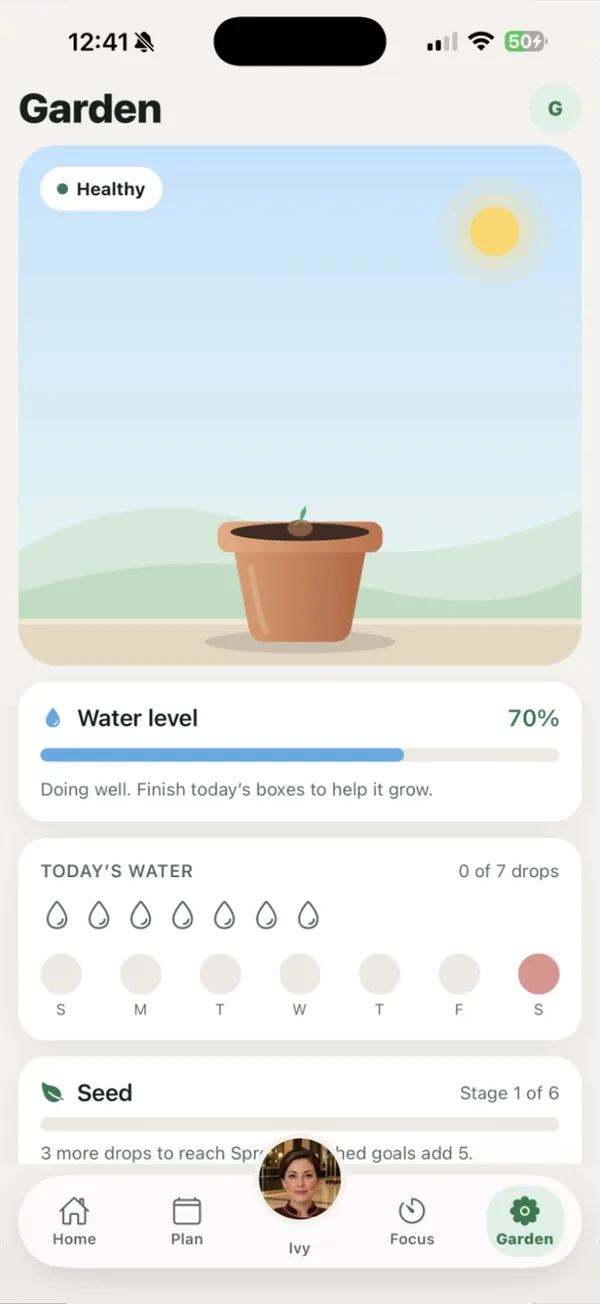
- Every time box or task you finish is a drop of water for the plant in the Garden tab. Priorities count double.
- Keep your plan and the plant grows from seed to bloom. Miss a few days and it gets thirsty; finishing one box starts bringing it back.
- Your habits and repeating tasks are listed in the Garden too, with streaks and how much of your plan you kept.
6. Connect your calendar and Apple Health
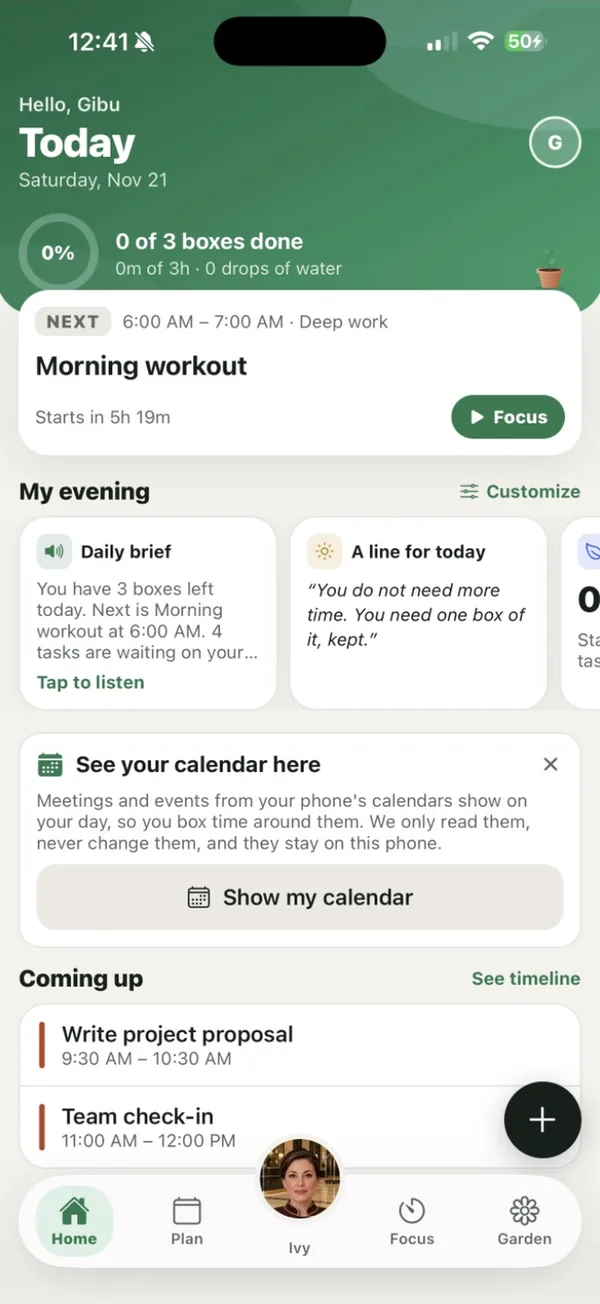
- Tap the round profile button at the top right, then under Connections turn on Show my calendar. Events from your phone’s calendars show on your day and your assistant plans around them. The app only reads them.
- On iPhone, turn on Apple Health to see last night’s sleep, steps, exercise and water on Home, and let habits like Drink water or Exercise tick themselves off. Health data never leaves your phone.
- Change the topics of your Line of the day in your profile at any time: Bible verses, spiritual thoughts, motivation, timeless wisdom, calm or a little humour.
7. Plans, the free week and subscriptions
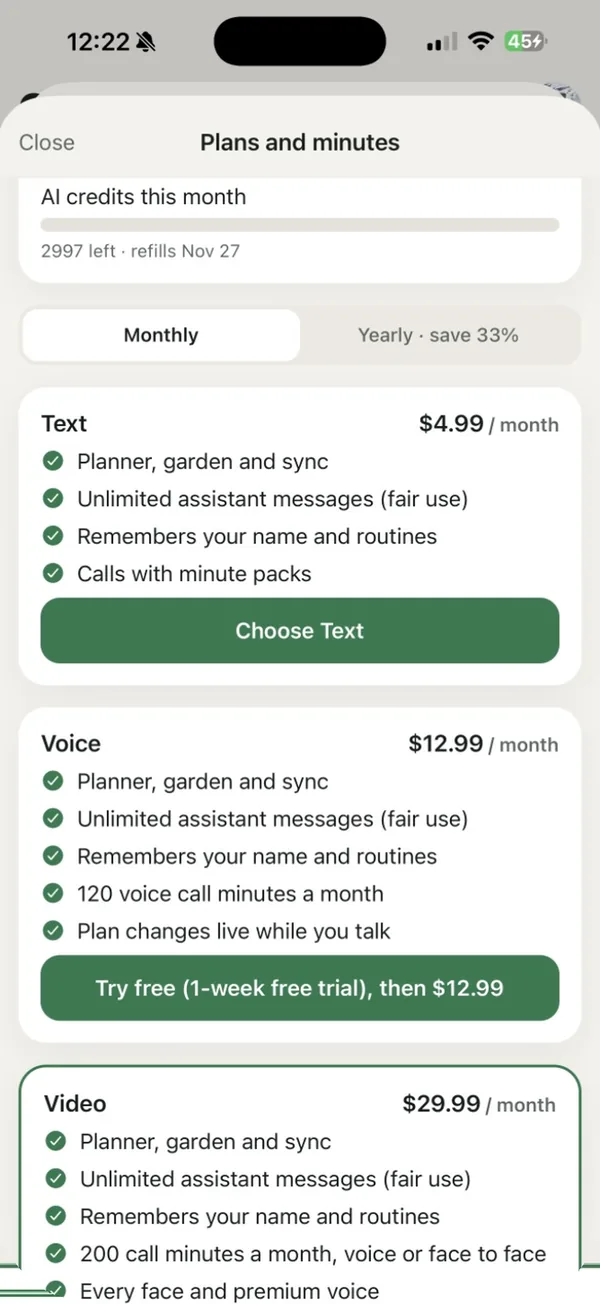
- Every new account gets 7 days of everything free, voice and video calls included (up to 15 call minutes). No card is needed, and nothing is charged when it ends.
- After the free week you move to the free plan and keep all your plans and your garden. To see or change plans, open your profile and tap Plan and AI credits.
- Paid plans are Text, Voice and Video, monthly or yearly. Extra call minutes and AI credits never expire. See Pricing for what each includes.
- Payment goes through your Apple Account. To cancel, open your iPhone’s Settings → your name → Subscriptions, or tap Manage subscription on the Plans screen. Cancel at least 24 hours before renewal.
- Got a new phone? Sign in and tap Restore purchases on the Plans screen.
8. Your account and your data
- Your profile shows your account. Sync now and Sign out are in Profile → All settings. Signed out? The sign-in form is right on your profile.
- To export your data, go to Profile → All settings → Export my data.
- To delete your account and the synced copy of your data, go to Profile → All settings → Delete account, or use My account on this website. Delete all data clears what is on your phone.
- Read how your data is handled in the privacy policy.
Still stuck?
Write to support@taskgardenai.com or use the form on Support. A real person reads every message.
Talk it through, plan your day.
TaskGardenAi is on the App Store for iPhone. Free to download, with 7 days of everything free. Android is coming soon.